Start in your phone’s browser if you want to try an AI sex chat service. Open the provider’s official site, test one harmless conversation, and see what comes back after you close the tab. Before moving to an installed app or a home-screen shortcut, check what the phone shows on the lock screen and in the app switcher. Those are separate checks from what the service saves in your account.

Choose the mobile route by how you’ll use it
- Browser tab. Start here when comparing services. A guest trial lets you check the composer, session prompts and account requirements with little setup. Try reopening the chat before putting time into a long conversation.
- Home-screen web app or shortcut. Useful when you want a dedicated icon for a site you use regularly. Test its session separately from your original browser tab. It still connects to the service when the model runs remotely.
- Native app. Consider it if the provider offers a supported build for your OS and it solves a real problem for you. Check the source of the installer, then try the app’s notification and permission controls on your phone.
- Browser connected to your own server. Useful when you already maintain a model or chat backend. The phone is the client. Inference happens wherever you configured it, such as a local computer or a remote provider. SillyTavern’s remote-connections guide documents using a phone browser to reach a PC on the same Wi-Fi network. SillyTavern remote connections
Find the official route before installing
On iPhone or iPad, SpicyChat’s current support page directs readers to the website and documents the Safari Share → Add to Home Screen route. The same support page says the native SpicyChat app is unavailable on the App Store. On Android, its documented route is a direct APK from SpicyChat. Look for the product name before opening a download. SpicyChat Support: Mobile apps
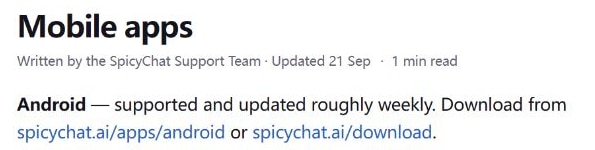
On November 18, 2026 (UTC), I opened and reloaded spicychat.ai/download in signed-out desktop Chrome at 390 × 844. The first Android entry, under SpicyChat, directed to the provider’s own /apps/android path. The adjacent PixelChat entry directed to a separate Google Play listing. That gives you a quick way to identify which product a badge leads to before selecting it. I inspected the links without downloading an APK. SpicyChat download page
If you are replacing an older iOS installation, check your account and subscription in the browser before making a new purchase. SpicyChat’s removal notice describes the transition for subscriptions purchased through the former iOS app. Use your current subscription status rather than assuming a new checkout will transfer your existing billing. SpicyChat iOS app notice
Test chat recovery with a detail you can recognize
During a September 24, 2026 SpicyChat guest check in desktop Chrome at 390 × 844, the composer and its image and microphone controls appeared along the bottom of a single-column layout. The same fictional transcript was visible after a reload in that browser session. I tested viewport layout and same-session recovery. Physical-phone behavior, push notifications, credits and touch keyboard behavior were outside that test.
On the phone you intend to use, run these checks with a fictional scene and a phrase you can spot quickly, such as “the brass museum key is in drawer four.”
- Reload first. Note whether the exact conversation and phrase return. Record the browser, whether you signed in, and whether the tab was in private browsing.
- Close and reopen the route you’ll keep. Launch from your bookmark, home-screen icon or app. Check whether you reach the same account and can find the conversation from its normal history screen. A transcript that returns on reload can disappear when you reopen through a different browser profile or login method.
- Test recovery before troubleshooting. If the chat disappears, verify the active account and browser profile before clearing site data or reinstalling. Use a disposable chat for changes that could remove local state.
Write down the outcome as narrowly as you can. “The chat reappeared in the same signed-in browser after reopen” is useful. Retention on the provider’s servers and whether a model uses that text in future replies require separate checks. Private AI chat checklist
Check what’s visible with the phone locked
Use the same harmless conversation. First, see whether the route offers alerts and whether the phone has allowed them. Lock the phone before triggering a supported test alert, then record what appears before you unlock. Then switch apps with the conversation open and check the preview. A quiet lock screen in one trial establishes only what happened in that trial. An app might have lacked permission or never sent an alert.
- On iPhone, review the app entry under Settings → Notifications, where available, and check which previews appear while the phone is locked. Use Show Previews if the app exposes it. Inspect the app switcher separately because its snapshot is a different surface. Apple Support: Change notification settings
- On Android, open Settings → Notifications and check both the app entry and the lock-screen setting. The exact menu varies by device. Confirm the result with a harmless alert after changing a setting. Android Help: Control notifications
- On a shared handset, check the browser history entry and where intentionally downloaded images land. If those locations are shared, decide whether you are comfortable using the service on that device before starting a longer chat.
If your phone connects to a computer at home
Keep the first test on your own network. Open your interface on the computer, generate a new reply there, then open that same interface from the phone using your configured connection. If the phone can display the UI but fails to generate a reply, check the backend from the host computer before changing phone settings. For remote access outside the home, follow the project’s guidance on secured access. SillyTavern remote connections
Next step
Open the service from its official site and finish one short browser test. Keep the route that restores the conversation the way you expect and shows only what you’re comfortable seeing on the locked phone. Install an app if the official build offers a feature you’ve verified you’ll use.